Google Workspace CRM Setup: Integrating Zoho with Gmail and Calendar
Updated: 4 days ago
Most sales teams live in Gmail and Google Calendar all day, then retype half of it into the CRM at 5pm — or never. Connecting Zoho CRM to Google Workspace closes that gap: emails are automatically attached to the right contact, calendar events sync both ways, and your team stops doing double data entry. The integration is built in and free with your CRM; the value is in setting up the sync directions deliberately so it stays clean instead of creating duplicates.
Integrating Zoho CRM with Google Workspace connects Gmail, Google Calendar, and Google Contacts to your CRM — plus single sign-on and Google Ads data — so customer interactions sync automatically instead of being copied by hand. Most of it is configured in Zoho CRM's settings under Marketplace → Google. This walks through what connects, the setup, the sync-direction choices that matter, and the pitfalls.
Why connect Zoho CRM and Google Workspace?
Before the steps, the payoff — because it shapes which pieces you turn on:
No double entry. Emails and meetings logged in Google show up against the CRM record without re-typing.
Context for sales. A rep sees the full email and meeting history on the contact before a call.
One identity. Single sign-on lets the team log into Zoho with their Google account.
Fuller reporting. Activity captured automatically means your pipeline and activity reports reflect reality, not what people remembered to log.
What can you connect?
Zoho CRM's Google Workspace integration covers several distinct pieces — you don't have to enable all of them:
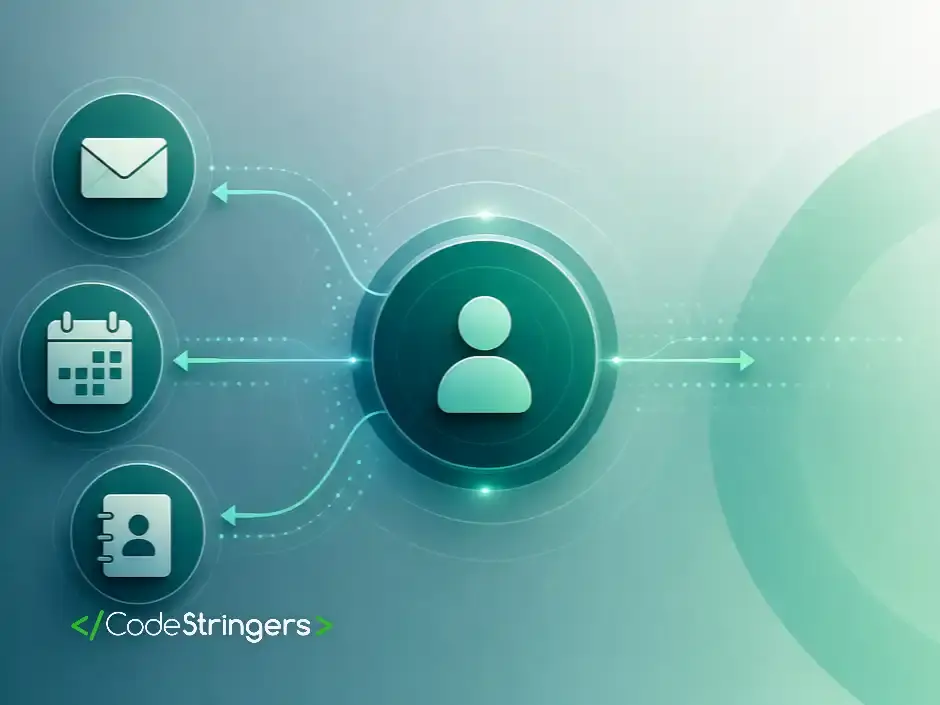
Gmail — send and read email from within CRM, with auto-association that attaches messages to the matching contact when the email address matches a record.
Google Calendar — two-way sync so meetings created in either system appear in both.
Google Contacts — sync contacts one-way (either direction) or two-way.
Single sign-on (SSO) — log into Zoho with Google Workspace credentials.
Google Ads — sync ad campaign data into CRM to tie spend to leads.
Each is configured separately, and each has a sync-direction decision that determines whether the result stays clean.
How to set up the integration (step by step)
The pieces are configured in similar places; this is the core flow:
Open the Google integration. In Zoho CRM, click the settings cogwheel → Marketplace → Google. You'll see Calendar, Contacts, and related options.
Authorize with Google. Sign in with your Google Workspace account and grant the requested permissions (calendar, contacts, and/or Gmail access depending on what you're enabling) via OAuth.
Configure Gmail. Enable the Gmail connection and set auto-association — whether emails automatically attach to CRM contacts when the sender or recipient matches an existing record.
Set up Calendar sync. Choose the direction: Two-way (changes in either system sync both ways), Zoho → Google, or Google → Zoho. Two-way is the usual choice; save it.
Set up Contacts sync. Pick the direction — Zoho → Google, Google → Zoho, or two-way — based on which system you want to own the contact list.
Enable SSO (optional). Turn on Google sign-in so the team authenticates with their Workspace account.
Test before rolling out. Create a test event and send a test email, and confirm they land against the right record before turning the team loose.
The sync-direction choices that decide everything
The setup is quick; getting the directions right is where it lives or dies. Decide deliberately:
Calendar — usually two-way. Reps create meetings in whichever tool is open; two-way keeps both in sync. Use one-way only if one system must be the single source of scheduling.
Contacts — pick a source of truth. Two-way contact sync feels convenient but is the easiest way to create duplicates and overwrite good data with bad. If the CRM is your real contact database, consider Zoho → Google one-way so the CRM stays authoritative.
Gmail auto-association — on, with a clean match key. Auto-association is what removes the manual logging; just make sure your contacts are de-duplicated on email first, or messages attach to the wrong record.
A sync architecture at a glance
The shape: Google Workspace handles day-to-day communication (mail, calendar, contacts); Zoho CRM handles customer records and history; and the integration keeps selected fields in sync in the directions you set. Done well, your team works in Gmail and Calendar as usual while the CRM stays current underneath — the foundation that the rest of your Zoho automation builds on.
Book a free Zoho consultation if your team lives in Gmail, but the CRM is always out of date, and you want the sync set up so it stays clean: start a no-risk discovery.
Common mistakes to avoid
Two-way contact sync without a source of truth. The fastest path to duplicate and overwritten contacts. Decide which system owns the list.
Auto-association on a messy contact list. Emails are attached to the wrong record if contacts aren't de-duplicated on email first.
Enabling everything at once. Turn on Calendar, then Gmail, then Contacts — one at a time, testing each — rather than flipping every switch and debugging a tangle.
Skipping the test run. Always confirm a real event and email land correctly before the whole team relies on it.
Ignoring permissions scope. Grant only the Google permissions you actually need for the pieces you're enabling.
In short
Integrating Zoho CRM with Google Workspace ends the double data entry: Gmail attaches emails to the right contact, Calendar syncs both ways, and SSO unifies login — all included with your CRM. The setup is quick; the durability is in the sync-direction choices and a de-duplicated contact list. Get those right and your team works in Google while the CRM stays current. If you'd like it set up to stay clean, book a free Zoho consultation.
By the CodeStringers Team — Zoho Experts & Custom Software. CodeStringers is a custom software engineering firm with a dedicated Zoho practice, writing from work we've actually shipped for clients.
Find out what one connected Zoho system would change in the way you run.
In a no-risk discovery we look at your CRM, finance and operations systems and who owns each part, and show what a connected system would do differently. You pay only if you proceed. Or see how we approach it.
More on the same problem:


Comments